Build an order from scratch
From pressing New order to a page your customer can approve: the company and buyer, the items, shipping, tax and payment terms.
An order in VerifiedHive is not a Shopify order yet. It is yours to build and change freely, and it becomes a Shopify order the moment your customer approves it. Until then nothing is in your Shopify Orders at all.
1. Start it
- Press New order on Home, on a company, or on one of its locations.Starting from a location saves a step, because the order picks up that location's addresses and terms.
- Choose the company and press Start the order.
A company that is still waiting for approval cannot be sent an order. Approve it first, under Companies, To approve.
2. Check who it is for
Two fields decide a great deal, so they are worth a glance before you type anything: Location and Buyer. The location fills in the addresses, the payment terms, the tax treatment and the usual shipping. The buyer is the person who gets the link, approves the order and pays.
3. Add what they are buying
- Press Add products for items from your store, or Add custom item for anything else.A custom item is for the thing you do not keep as a product: a setup fee, a one-off run, a sample.
- Type each line's Quantity and Price each.
- Press More on a line to add Customization notes and a Mockup.The mockup walkthrough covers this in full.
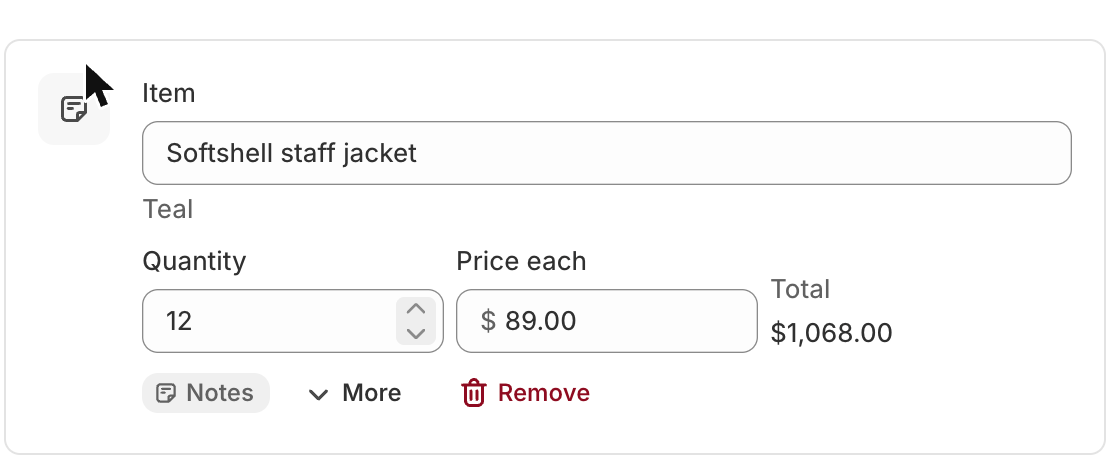
A price you type is kept as a Custom price, and Use the catalog price puts the catalog's back. Store products take the location's catalog price from Shopify, which is why the location matters before the items do.
4. Shipping, tax and payment terms
All three live in the Payment card. Shipping has to be chosen even when there is none, because shipping left out by mistake would reach your customer as free: pick No shipping if it does not ship.
Press Add shipping or delivery and the list covers the ways a made-to-order shop actually ships:
- Shopify shipping rate, whose rates come up by themselves once there is an address and items.
- Freight, with Freight details: pallets, freight class, BOL and PRO numbers.
- Local delivery or Pickup.
- Buyer's carrier account, when they ship on their own UPS or FedEx account.
- Their shipping company, for a customer who uses a logistics company. It either ships on that company's carrier account, with the carrier, account number and the account's ZIP for third-party billing, or picks the order up, with a pickup reference and instructions.
- Custom method, with a price you type.
- No shipping.
Under Delivery details you can add a Ship by date, Liftgate needed, Delivery appointment needed, Residential address or written instructions. Tick Use this shipping for the location's next orders to make it that location's usual shipping, so the next order starts there.
Tax has three choices behind the link beside Tax: Calculated by Shopify, from your Shopify tax settings, Your own tax rate, which can apply to shipping too, or Don't charge tax. With Shopify's tax, Calculate tax works it out for the address, and it is worked out again each time you save.
While you are here, check the Billing address, add the Buyer's PO number if they use one, read the Terms and instructions they will agree to, and add Notes. Notes are for your team unless you tick Show this note to the buyer on their order page.
Three things are fixed in Shopify the moment the order is placed and cannot be changed afterwards: the location, the buyer, and whether Shopify charges the tax. If one of them is wrong, duplicate the order and start from the copy.
Payment terms are what your customer agrees to when they approve, and what the invoice says. They start from the location's terms, or from your default in Settings, Orders, and you can change them on any order while it is still editable.
5. Send it
- Press Review and create order.The app reads the payment terms back to you first. If anything is missing, it says what and takes you to the card that needs it.
- Confirm the terms, and the app has Shopify price the order and shows you your customer's page as they will see it.
- Press Create order.
- Press Share, then Copy link, or Email.The app never emails your customers. The link goes out from you, by email or by text message.

What happens after they approve
The order is placed in Shopify with payment pending under its terms, and from then on it goes by its Shopify number, like #1001. Payments, fulfilment and shipping done in Shopify come back here, and money you take outside Shopify is recorded on the Shopify order too, so the two never disagree.
What trips people up
- On a shared computer, check the name at the top before you save: switch it to yours if someone else used the app last.
- A price you type is kept as a Custom price. Use the catalog price puts the catalog's back.
- Every line and price can be corrected until the buyer approves. Once they have, use Edit order: the change goes back to them.
- Rates need the address and the items first.
- Your handling fee (Settings, Shipping) is added to rates and freight; untick it to leave it off one order. The buyer sees one shipping price.
- The buyer sees and approves their shipping company and the delivery details. Freight details are for your team and the Shopify order's note.
- Your own tax rate goes to Shopify as a Sales tax line on a tax-exempt order, so it isn't in Shopify's tax reports: the orders export has a Tax rate column.
- The location, the buyer, and whether Shopify charges the tax can't change once the order is placed in Shopify. To change them, duplicate the order.
- If the buyer approves by phone or email instead, press Record their approval and type their full name.
- If Shopify's total changes before they approve (a tax rate change), they're asked to approve the new total.
Check you have it
The buyer says yes on the phone. What do you do?
Press Record their approval, type their full name, choose By phone, and press Record approval. The order is placed in Shopify.
Short answers on this
- How do I build an order?
- How do I add a mockup or proof to an item?
- Can I change a mockup after the buyer has the order?
- Can a buyer approve only some items or mockups?
- Where are mockups and uploaded files kept?
- How do I send an order to the buyer?
- When does the order appear in Shopify?
- The buyer approved by phone or email. What do I do?
- Is there a record of what the buyer approved?
- The buyer asked for changes.
- How do I change an order after it's approved?
- How do I give a discount?
- How do I repeat an order?
- How do I cancel an order or give a refund?
- What do the order statuses mean?
- What are numbers like L-000001 and C-000001?
Read next
- Send a mockup for approvalAttach a mockup or proof to an item on an order, send the order to your customer, and get their approval on record before anything is made.
- Change a mockup or an order after it has gone outCorrect an order or replace a mockup, whether the customer has approved it yet or not, and keep the approval record straight.