The first hour
What to set up before your first real order: your business details, who is on the team, and the one habit that keeps the history straight.
The app works out of the box, but three things are worth doing before a real customer sees anything you send.
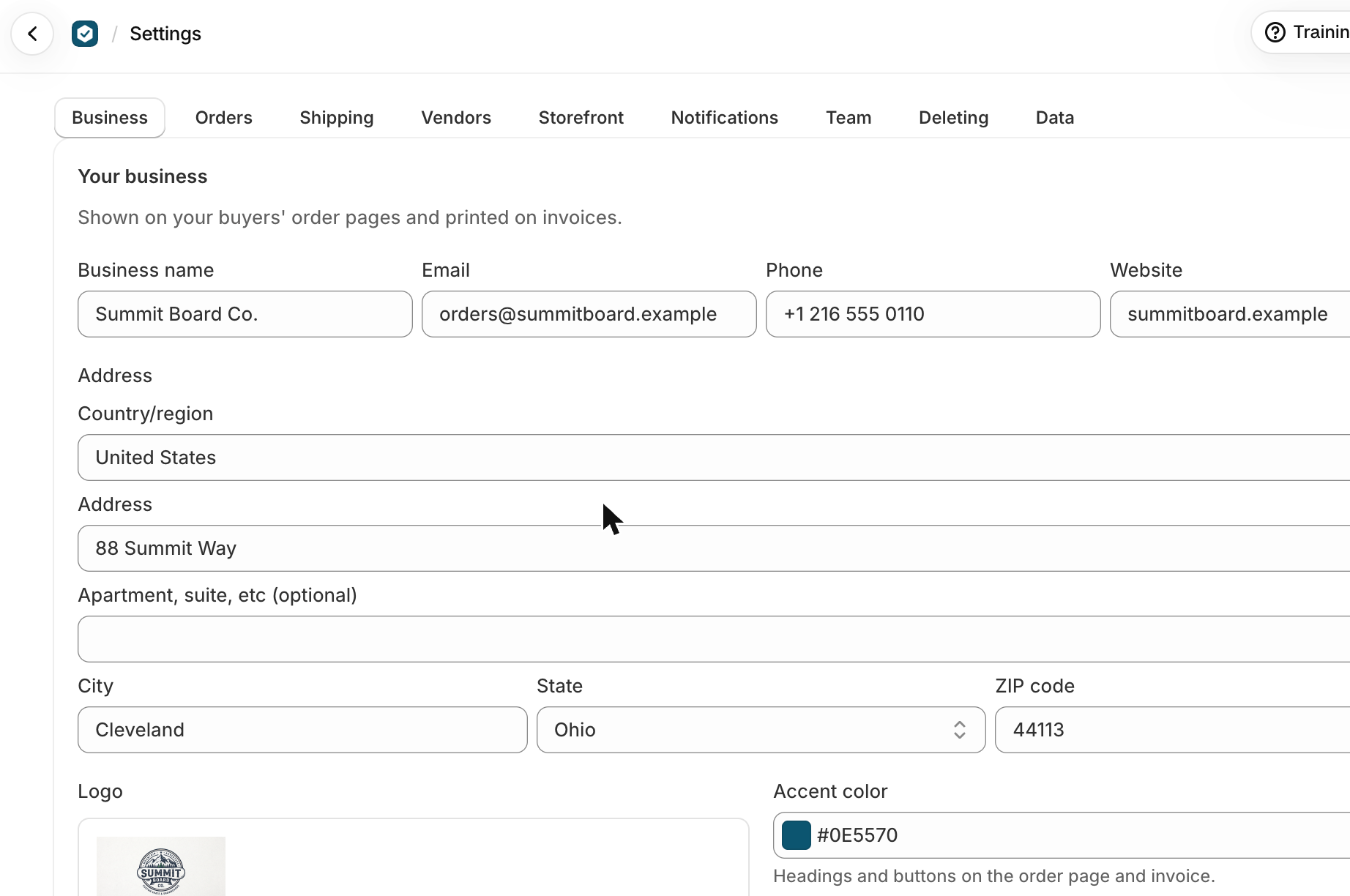
1. Your business details
These are what a customer sees at the top of their order page and on every invoice, so they are worth getting right once.
- Open Settings, then Business.
- Fill in Business name, Email and Address.
- Add your logo and choose an Accent color.The accent colour is the colour of the customer's Approve order button, so pick something that stands out against white.
- Press Save.
- Under Invoice and receipt, press Invoice to see the PDF a customer downloads.It is drawn by the same code that makes the real one, with your details on it, so what you see is what they get.
2. Your team
Anyone on your Shopify staff who has access to the app can use it. Add each person under Settings, Team as well, so they can be named as an Account manager and can pick themselves in Who's working on this order.
Roles in the app are labels. Everyone on the team can do everything; the roles are there so you can see at a glance whose account a company is.
3. Pick your name before you change anything
An order asks Who's working on this order before it will let you save. That is how every change lands in the order's history under the right name. The app remembers the name in that browser, so on a shared computer, check it is yours before you start.
What the app expects from Shopify
- Forms, leads, vendors and purchase orders work on any Shopify plan that has the Online Store.
- Companies and their orders use Shopify B2B, which comes with most plans but not Starter or Retail.
- The storefront pieces are app blocks and an app embed, so they need a theme that uses Online Store 2.0 sections. None of them changes your theme's code.
The app is in English, and orders and invoices are in your store's currency. Your own questions, terms and notes show exactly as you write them.
What trips people up
- Nothing is saved until you press Save in the bar at the top.
- A very light accent color gets dark text on the buyer's buttons automatically, but check the preview.
- Roles are labels only: everyone on the team can do everything in the app.
- The word stops a slip of the mouse, not a person: anyone on the team can type it.
- Removing a team member keeps their name on what they did. Deleting them for good asks for the word delete.
- A company location's own payment terms win over these for orders at that location.
- The 4-digit code applies only to orders created after you turn it on.
- On a shared computer, check the name at the top before you save: switch it to yours if someone else used the app last.
Check you have it
A buyer says the invoice shows your old address. Where do you fix it?
Settings, Business: change the Address and press Save. Invoices drawn after that use it.
Which asks you to type delete: closing a lead, or deleting a note on it?
Deleting the note. Closing a lead, archiving a company and retiring a form ask for nothing; cancelling an order asks for the word cancel.
Short answers on this
- What does VerifiedHive CRM do?
- Where do I start?
- Are there videos?
- How do I put my logo and details on the buyer's page and invoices?
- Which Shopify plan do I need?
- Does it work with my theme?
- Can my whole team use it?
- Why does an order ask who's working on it?
- Is there a limit on leads, orders or forms?
- Does it work in other languages and currencies?
Read next
- Put a quote form on your storeBuild a form, publish it, and put it on your store as a page, a product page button, or both, so requests arrive as leads instead of emails.
- Build an order from scratchFrom pressing New order to a page your customer can approve: the company and buyer, the items, shipping, tax and payment terms.