Payment terms, invoices and getting paid
The four ways a customer can pay, how to record money that arrives outside Shopify, and where the invoice and receipt come from.
Everything a customer owes is settled through Shopify, which is what keeps your Shopify reports honest. The app's job is the part around it: agreeing terms up front, keeping the paperwork, and recording money that arrives by check or transfer so the two never disagree.
The four terms
- Pay in full on approval: the customer pays the total from their order page, by card at Shopify's checkout or another way you agree.
- Deposit, balance before shipping: a share on approval, the rest before it ships. On Shopify Plus the deposit is paid by card at checkout. On other plans Shopify cannot take part payments, so the deposit comes by bank transfer or check and you record it; once the full amount is in, the Shopify order is marked paid.
- Due on fulfillment: placed when approved, due once it ships.
- Net terms (pay later): placed when approved, due 7 to 90 days later.
A new order starts with the terms set in Settings, Orders, unless the company location has its own, which come first. You can change them on any order while it is still editable, and the app reads them back to you before it builds the customer's preview.
The deposit option is worth reading twice, because it behaves differently depending on your Shopify plan. On Shopify Plus the customer pays the deposit by card at checkout. On other plans Shopify cannot take part payments at all, so the deposit comes to you by bank transfer or check and you record it here; once the full amount is in, the Shopify order is marked paid.
Money that arrives outside Shopify
- On the order, press Record a payment.
- Fill in Amount received, How it was paid, Reference and Date received.
- Press Record payment.
The balance drops and the badge moves to Partially paid, then Paid. The payment is recorded on the Shopify order too, so Shopify shows the same picture. One entered by mistake can be removed while it has not reached Shopify yet.
Chasing a balance
On the order, Email about payment opens your own email app with a draft, and Have Shopify email a payment request sends Shopify's own. Home lists every order with a balance under Money owed, which is faster than reading badges one order at a time.
An order whose due date has passed with money still outstanding carries an Overdue badge. The due date comes from the payment terms, so net terms do the chasing for you: nothing is overdue until it genuinely is.
After a change that lowers a total the customer has already paid, the order shows Refund owed. The refund itself is made in Shopify, where the money is.
The invoice and the receipt
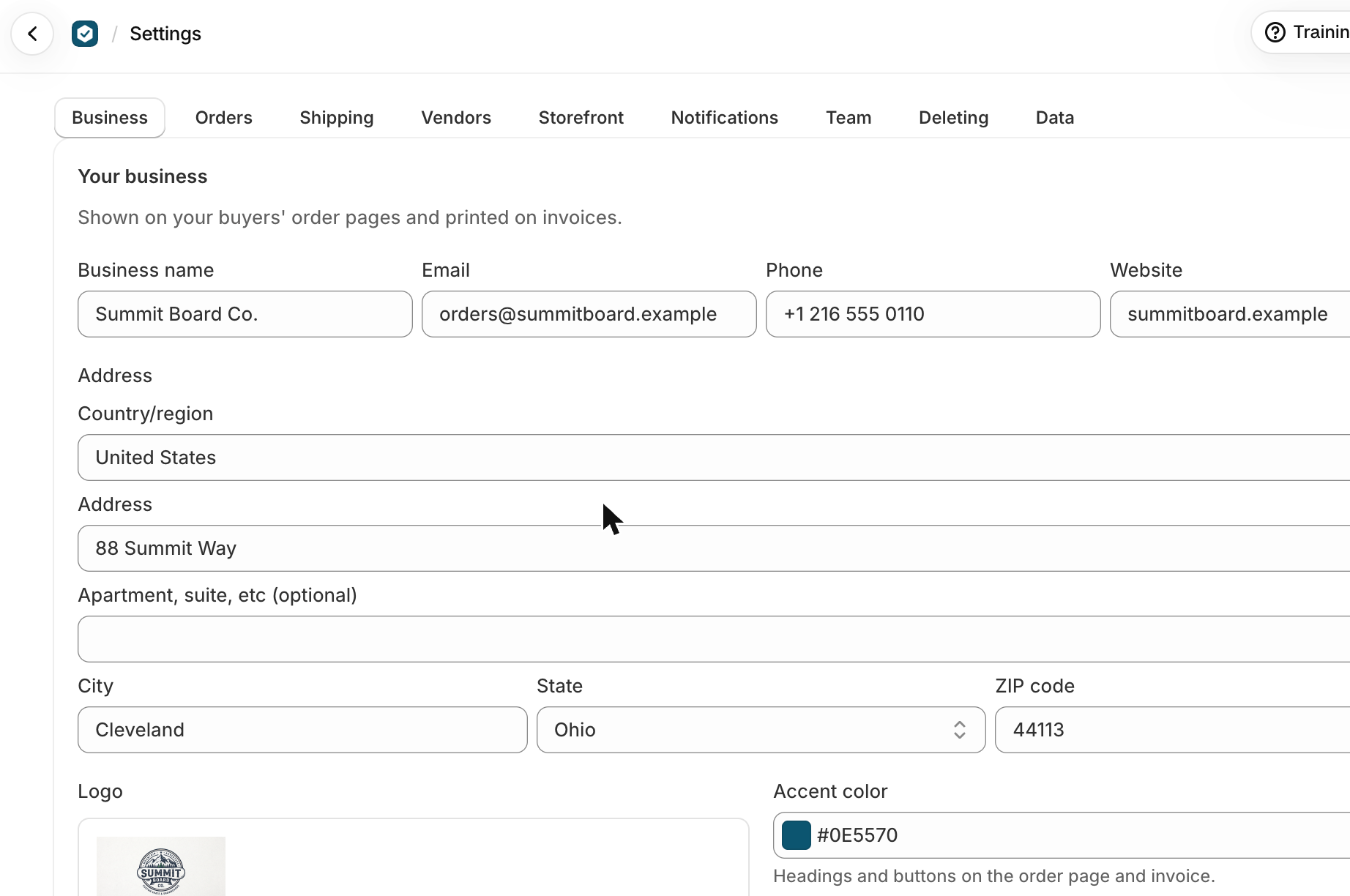
Both are drawn from the order itself, with your letterhead from Settings, Business, so they cannot drift from what the customer approved. The invoice becomes the receipt as payments come in. You can see exactly what prints before you send anything: Settings, Business, then Invoice or Receipt under Invoice and receipt.
The app never takes payment itself and never emails your customers. Everything a customer pays goes through Shopify, and the link to their order page goes out from you.
What trips people up
- Your own tax rate goes to Shopify as a Sales tax line on a tax-exempt order, so it isn't in Shopify's tax reports: the orders export has a Tax rate column.
- The location, the buyer, and whether Shopify charges the tax can't change once the order is placed in Shopify. To change them, duplicate the order.
- You can't record more than the balance.
- Below Shopify Plus, Shopify takes one payment for the whole balance: part payments recorded here wait, marked Recorded here, not in Shopify yet, until the rest is in.
- A payment recorded by mistake can be removed while it isn't in Shopify yet (type delete to confirm).
Short answers on this
- Which shipping options can I offer?
- No shipping rates come up on an order.
- How is tax charged?
- Which payment terms can I offer?
- The buyer paid by check or bank transfer.
- How do I remind a buyer to pay?
- How do I mark an order as shipped?
Read next
- Build an order from scratchFrom pressing New order to a page your customer can approve: the company and buyer, the items, shipping, tax and payment terms.
- Shipping, tax and marking an order shippedPick how an order ships, get real rates to show up, choose how tax is charged, and close the loop when it leaves the building.