Every setting, tab by tab
What each of the nine Settings tabs controls, and which ones are worth visiting before your first real order.
Settings has nine tabs. Three of them shape what your customers see, three shape how the app behaves, and three are housekeeping.
Business
Your name, email, phone, website and address, your logo and its size, an Accent color and an optional Invoice footer. All of it prints on invoices and shows at the top of your customer's order page. Invoice and receipt at the bottom draws the real PDF so you can see it before anyone else does.
Orders
What every new order starts with: the default Payment terms, the Terms and instructions a customer agrees to when they approve, How to pay by bank transfer or check, Follow up after sending (business days) and Protect order pages with a 4-digit code.
A company location's own payment terms come first, so the default here applies when a location has none of its own.
Shipping
Packages, the boxes you ship in, because Shopify will not let an app read the ones saved in your Shopify settings. Add them here or rates come back wrong. Handling fee adds a flat amount, a percent, or both to the shipping a customer pays, on Shopify's rates and on freight.
Vendors
The same shape as Orders, for the buying side: Terms and instructions on new purchase orders, where goods are delivered, Follow up if not confirmed after (business days) and Protect vendor pages with a 4-digit code.
Storefront
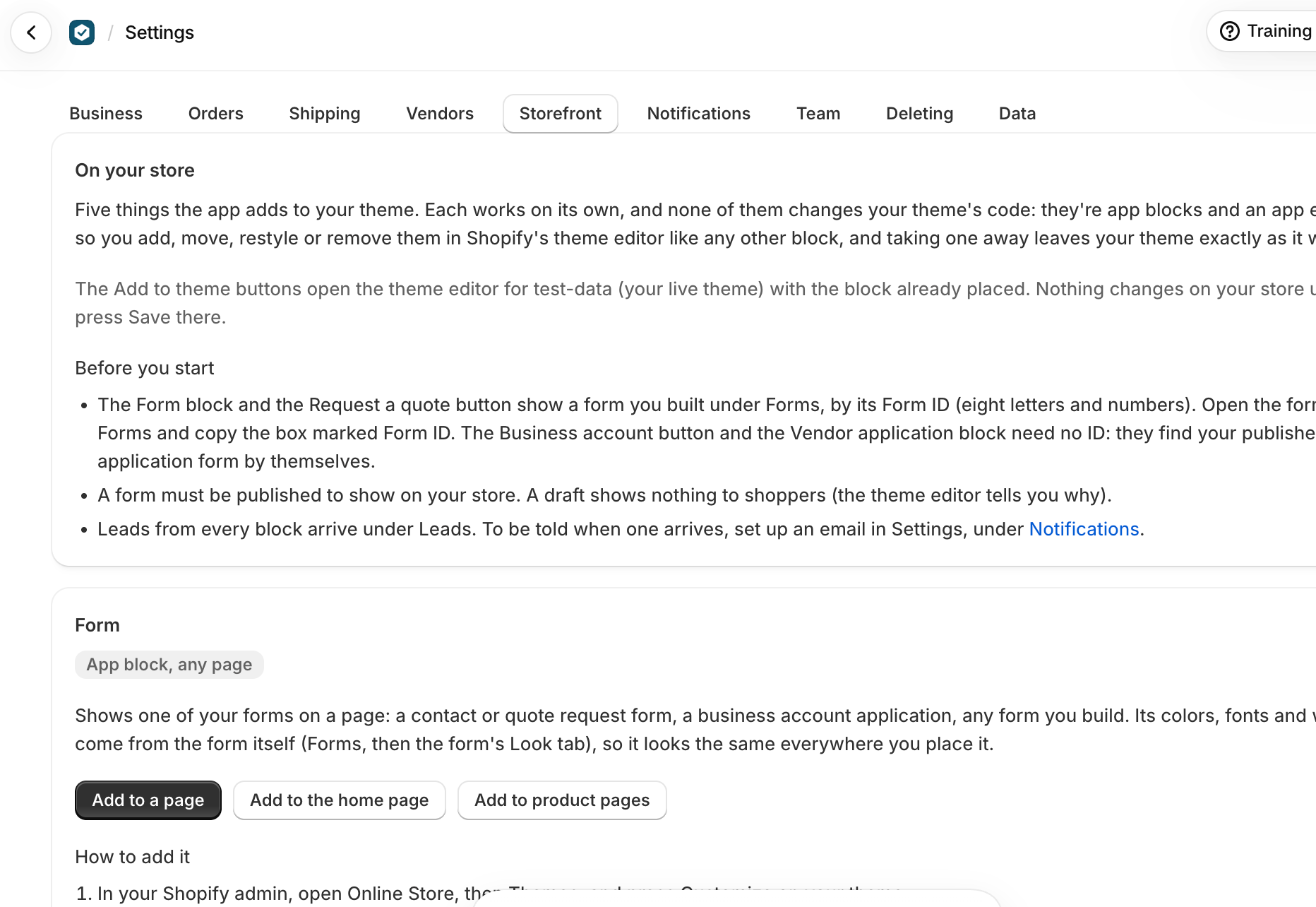
The five things the app can add to your theme, each with a button that opens the theme editor with the block already placed: the Form block, the Request a quote button, the Create a business account button, the Vendor application form block and Hide price. None of them changes your theme's code, and nothing changes on your store until you press Save in the theme editor.
Notifications
The app sends no email of its own. This tab shows how to get alerts through Shopify Flow, which is free, with a subject and message ready to paste for each of the six triggers: CRM request created, Order sent for approval, Order approved, Order changes requested, Vendor application received and Vendor replied to a purchase order.
To change or stop one of those emails, edit or turn off the workflow in Shopify Flow. Flow sends them, not the app.
Team
Who can be named as an Account manager and picked in Who's working on this order. Access to the app itself is controlled by Shopify staff permissions, in your Shopify admin under Settings, Users. Roles here are labels: everyone on the team can do everything.
Deleting
Type a word to confirm makes deleting ask for the word delete, and cancelling an order or purchase order ask for cancel, so nothing goes by a slip of the mouse. It covers every delete in the app. What also lives in Shopify goes from there too, and none of it can be brought back.
Data
CSV exports of leads, companies, orders, vendors and purchase orders, the link that brings in your Shopify companies and their orders, any privacy requests waiting, plan and billing, and training and help.
What trips people up
- Nothing is saved until you press Save in the bar at the top.
- A very light accent color gets dark text on the buyer's buttons automatically, but check the preview.
- Roles are labels only: everyone on the team can do everything in the app.
- The word stops a slip of the mouse, not a person: anyone on the team can type it.
- Removing a team member keeps their name on what they did. Deleting them for good asks for the word delete.
- A company location's own payment terms win over these for orders at that location.
- The 4-digit code applies only to orders created after you turn it on.
- Shopify doesn't let apps read the packages saved in your Shopify settings, so add the ones you use here too, with the same names.
- Carrier packages start with an empty weight of 0. Edit one to set it if you want it counted.
- Shopify Flow sends these emails, not VerifiedHive. Change or turn them off in Flow.
Check you have it
A buyer says the invoice shows your old address. Where do you fix it?
Settings, Business: change the Address and press Save. Invoices drawn after that use it.
Which asks you to type delete: closing a lead, or deleting a note on it?
Deleting the note. Closing a lead, archiving a company and retiring a form ask for nothing; cancelling an order asks for the word cancel.
Where does a package's empty weight show up?
In Shopify's shipping rates for an order packed in it, and on the order's packing line for the team.
Short answers on this
- What does VerifiedHive CRM do?
- Where do I start?
- Are there videos?
- How do I put my logo and details on the buyer's page and invoices?
- Which Shopify plan do I need?
- Does it work with my theme?
- Can my whole team use it?
- Why does an order ask who's working on it?
- Is there a limit on leads, orders or forms?
- Does it work in other languages and currencies?
Read next
- The first hourWhat to set up before your first real order: your business details, who is on the team, and the one habit that keeps the history straight.
- Build an order from scratchFrom pressing New order to a page your customer can approve: the company and buyer, the items, shipping, tax and payment terms.